Chat with Documents
The Next Step in Information Processing
Instead of relying on public datasets and general knowledge, "Chat with Documents" generates context-specific answers and analyses based on your trusted internal sources. Upload your documents and use them as a basis for answering questions in the chat!
Solving Data Limitations
When asking questions to a language model, you are dependent on the dataset with which the model was trained. This is generally information retrieved from the internet. Non-public sources are likely not in this dataset. By using your documents as a source for the chat, you ensure that the model has the information you need to answer your questions.
Capabilities with Your Documents
You can ask questions about your documents such as listing the main points of a document or summarizing the document. You can also have the language model perform specific analyses using your own dataset.
Disadvantages of Document-Based Chatting
Uploading and processing documents are additional steps that you do not need to take if you can get satisfactory answers without the context of specific information. It also takes longer to generate an answer because the necessary information must first be retrieved from the document before the request can be sent to the language model.
Behind the Scenes of Chatting with Documents
The text from the documents you upload is extracted and divided into chunks. These chunks have a fixed number of characters (1024 characters), and we have also set an overlap (128 characters) between the chunks. Each piece of text is stored as a vector in a vector database. For each question, a selection is made from this data based on similarity to the question being asked.
Selection Process of Document Fragments
The pieces of text are already converted into vectors. Vectors have multiple dimensions that indicate how "similar" this text is to other text. Think of the RGB color system. A color with a similar RGB value is also a similar color but slightly different. The vector database allows us to retrieve text fragments ranked and filtered based on the question being asked. We select a maximum of 100 text fragments of 1024 characters to send along with the question.
Suitable Models for Document-Based Chatting
We have selected models with a large context window to enable chatting with documents. Prefer a high-quality language model from the central catalog for this feature.
Suitable models are models with enough context capacity and strong document analysis, such as the high-quality models from OpenAI, Claude, Google or European AI.
Select One or Multiple Documents
You can turn on file mode by clicking the paperclip on the right side of the question bar. You can choose up to 10 files to chat with.
If the selected model is not suitable, a suitable model from the current catalog is selected automatically.
You will chat with these documents as long as file mode is on.
Process Per File
In addition to chatting with documents, AI-Corporate also offers the ability to apply a prompt separately to each document and receive individual responses. This feature is called Process per file.
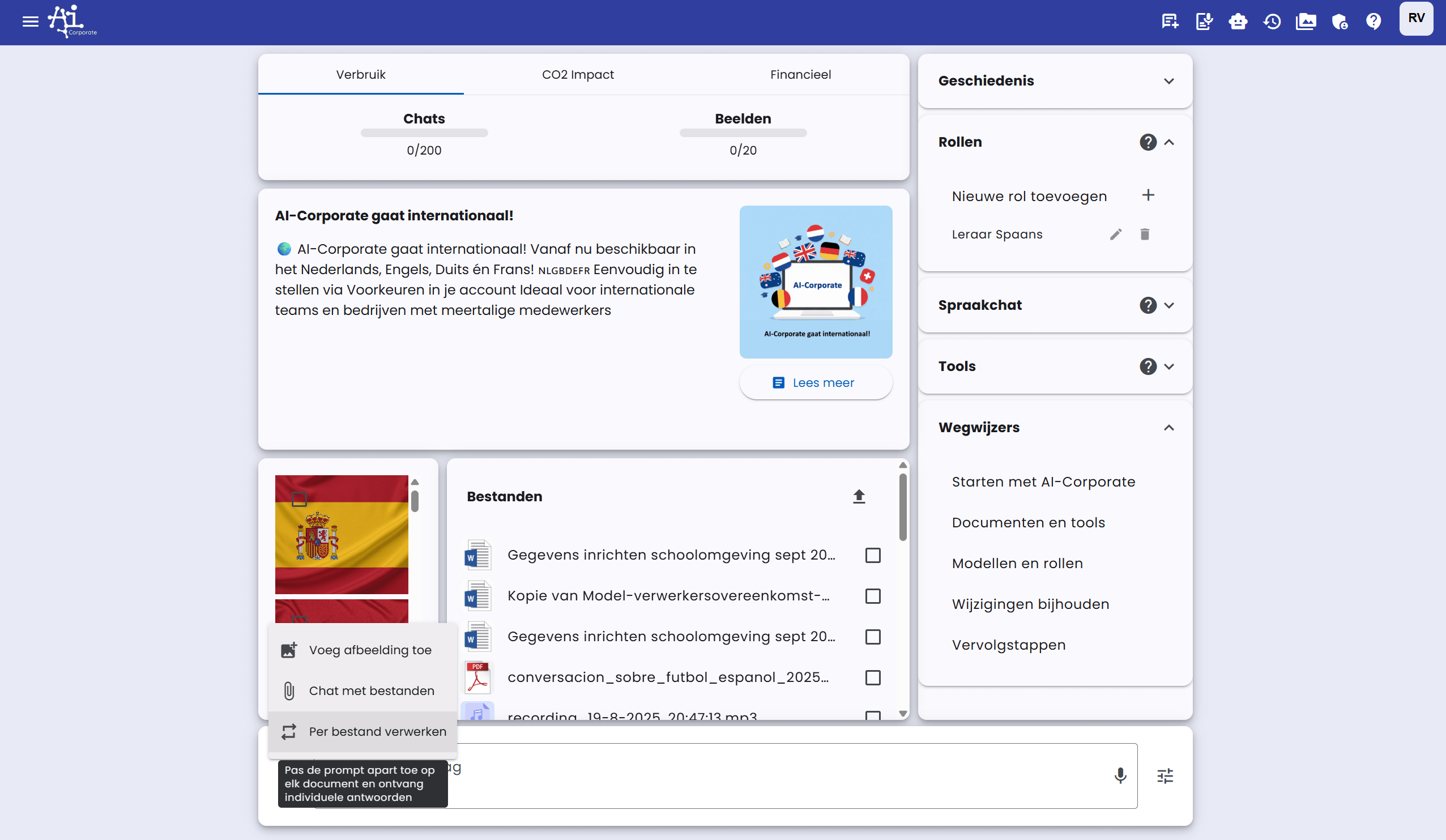
This feature can be used in combination with "Chat with files".
Possible Scenario
A practical example of using "Process per file":
- You upload a reference document (e.g., a contract template) and enable it in Chat with files
- You upload multiple documents that need to be analyzed and enable them in Process per file
- You formulate a prompt that is applied to all files individually
This way, you can, for example, have all contracts automatically analyzed based on the reference template.
There is a maximum of 30 files for the "Process per file" feature.
Supported File Types
AI-Corporate supports various file types for chatting with documents:
- PDF files ending in .pdf
- Word files ending in .docx
- CSV files ending in .csv
- JSON files ending in .json
- Text files ending in .txt
- Audio and video files with extensions 'mp3', 'mp4', 'mpeg', 'mpga', 'm4a', 'wav', or 'webm'
Chatting with audio or video files
For audio or video files, AI-Corporate first transcribes the file through the configured transcription provider, such as OpenAI or European AI. The concrete models come from the central model catalog.
For conversations, the transcript can include time blocks and speaker labels when the selected model supports this. A suitable text model can then correct punctuation, spelling, speaker labels, and specialist terms.
After transcription, the same process is used as for PDF or Word documents.
Audio and video models have provider- and model-specific limits for file size and duration. Long files may therefore be processed differently from short files. If processing fails, check the file status and try processing again or provide the file in smaller parts.
Files You Can Download as Examples
Sample Business Report Sample Project Plan Large History Document
File processing and reuse
Files you upload are processed before AI-Corporate can use their contents in chats, assistants and workflows. If processing fails, the file receives an error status and you can upload it again or process it again from file management.
For PDFs, AI-Corporate can use the regular text layer and, when needed, a more extensive PDF analysis. This is useful for scanned documents, completed forms, handwritten notes, circled or underlined choices, tables and visual information. Large PDFs can be split into smaller parts during processing.
When a form or workflow asks for a file, you can upload a new file or select an existing file from the media manager. Files added through such a form are available to the assistant for that chat, but they are not automatically selected for ordinary chat questions.
Markdown files with the .md extension are also supported.
Central knowledge base
Administrators manage the central knowledge base through Administration → Knowledge Base. Employees do not need to attach these documents to a chat: published knowledge is searched automatically when it is relevant. Documents remain owned by the organization, even if the original uploader's account is deleted.
Add a knowledge document
Use the plus button above the table and choose Link, Add document, or Add source file. A new document is written in the Markdown editor. A source file can be a PDF, Word, PowerPoint, Markdown, or another supported file; AI-Corporate processes it into canonical Markdown. Review the title, description, tags, publication status, and scope before saving.
A Draft is visible only to administrators. Set it to Published to make it visible and searchable, or Archived to remove it from active use. The scope is Entire organization or one or more Branches. Employees can open published items under Knowledge Base → My knowledge base, and regular chat answers cite the relevant knowledge document as a central source.
What is OKF?
OKF (Open Knowledge Format) is the portable format used by the central knowledge base. It combines ordinary Markdown with YAML frontmatter for metadata such as title, type, language, tags, and source. This keeps the knowledge readable outside AI-Corporate and allows it to be imported, exported, edited, and re-indexed without losing its structure.
Use regular Markdown links between documents. Export OKF bundle downloads the managed knowledge as a portable bundle. Import OKF bundle adds such a bundle; imported documents start as Draft so an administrator can review them before publication.
